Instant Site-Wide Search for Rapidweaver Elements
Find anything on your site – type a word, and the right page appears while you type
SiteSearch adds a fast, site-wide search to any Rapidweaver Elements project – no license key, no PHP and no setup. It reads your sitemap, builds a small index right in the visitor's browser and shows the results while they type, with every search word highlighted. Place it in your header and choose how the results appear: in a list below the field, in a search window that opens from a magnifying glass, or right in the page. Navigation and footer are left out automatically, CMS posts linked from your pages are found along with your static pages, and with Jump to Match a click opens the page right at the found text.
Drop it into your header or anywhere on the page, and publish.
Some Live Examples
Every search on this page searches this demo site. Type a product name like fleXon or SkyCast, or a word like weather or snowflakes, and watch the results appear while you type.
Example 1
Example 2
Example 3 - The magnifying glass in the navigation at the top of this page. A click opens the search window, and because the navigation is a Global, the search works on every page of this site.
Component Settings
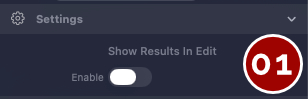
Show Results In Edit: Shows three sample results in the editor, so you can style colors, fonts and spacing without leaving the canvas. Real results appear in Browser Preview and on the published site.
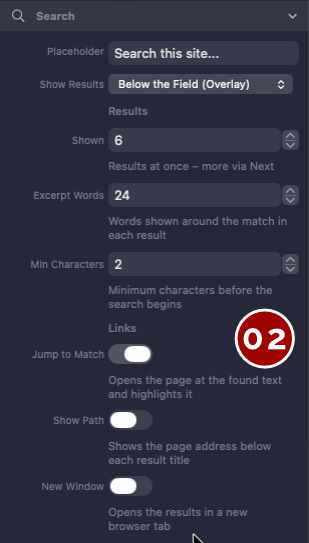
Placeholder: The hint inside the empty search field, for example Search this site...
Show Results: Below the Field (Overlay) opens a list that floats above the page and closes again with a click outside or the Escape key – ideal for a header. In the Page (Embedded) places the results right in the page and pushes the content below them down instead of covering it – ideal for a sidebar, a 404 page or a search page of its own.
Results: Shown sets how many results appear at once (if there are more results, a Next button appears), Excerpt Words how much text each result shows around the match, and Min Characters how many characters a visitor types before the search begins.
Links: Jump to Match opens the page right at the found text and highlights it, Show Path adds the page address below each title, and New Window opens the results in a new browser tab.
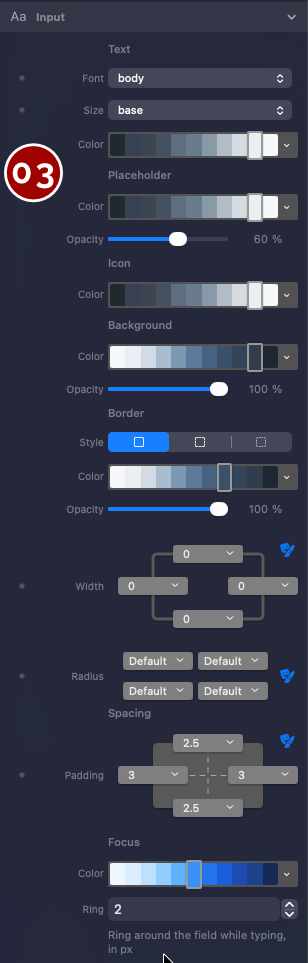
The Input group styles the search field. If you show only the magnifying glass (Icon Only in the Layout group), its size and color are set here as well.
Text: Font, size and color of the typed text. The magnifying glass and the clear button grow with the size.
Placeholder: Its own color and opacity, so the hint text stays a little softer than the typed text.
Icon: The color of the magnifying glass and the clear button.
Background: A theme color with its own opacity – set it to 0 for a transparent field in a colored header.
Border: Style, Color, Opacity, Width and Radius work exactly like they do on every other Elements component.
Spacing and Focus: The padding inside the field, and the color and width of the focus ring that appears while the visitor types.
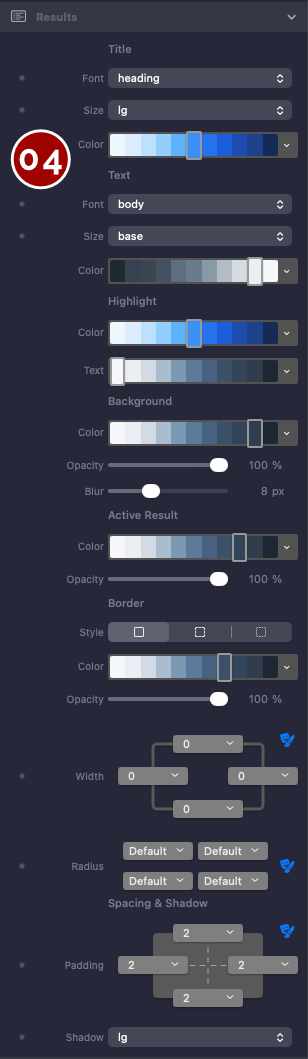
Title and Text: Font, size and color for the page titles and the excerpts in the results.
Highlight: Background and text color of the search words in titles and excerpts.
Background: The color of the result list with its own opacity – plus Blur, which softens the page behind a transparent list.
Active Result: The background of the result under the mouse or selected with the arrow keys, again with its own opacity.
Border, Spacing and Shadow: Style, Color, Opacity, Width and Radius for the border, the padding around the list and a shadow from your theme – the same controls you know from every Elements component.
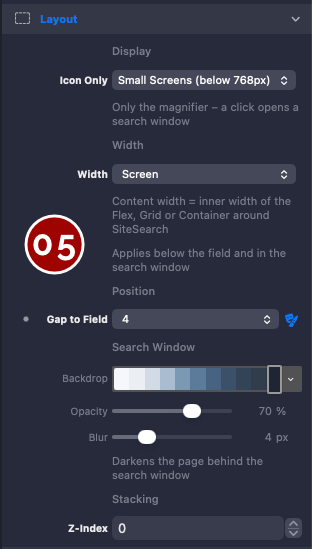
Icon Only: Shows just a magnifying glass on smaller screens – Small Screens, Small And Medium Screens or Up To Large Screens – or on All Screens. A click opens the search window, just like a navigation that switches to a burger menu.
Width: How wide the results get – as wide as the field, half or the full content width, the whole screen or any theme size, including your own pixel or percent value. The same width applies to the list below the field and to the search window, which always fits the screen on a phone.
Gap to Field: The space between the search field and the results – in the list below the field and in the search window.
Search Window: As soon as Icon Only is set to anything but Never, the Layout group also shows the backdrop color, opacity and blur for the page behind the search window.
Z-Index: Sets the layer of the result list and the search window. Both float above the sections of your page – raise the value only if something with a higher z-index covers them, a sticky header or a cookie banner, for example. Default: 50.
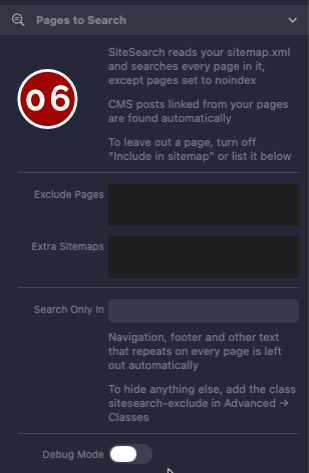
SiteSearch reads your sitemap.xml and searches every page in it, except pages set to noindex. CMS posts linked from your pages are found automatically.
Exclude Pages: One address per line, for example /imprint/ – end an address with an asterisk to leave out a whole folder.
Extra Sitemaps: Additional sitemaps to read, for example the sitemap of a CMS collection.
Search Only In: The ID of a container to read on each page, as set in Advanced → ID. Navigation, footer and other text that repeats on every page are left out automatically anyway – to hide anything else, add the class sitesearch-exclude.
Debug Mode: Writes the list of pages, the skipped pages and the score of every result to the browser console – turn it on only while testing.
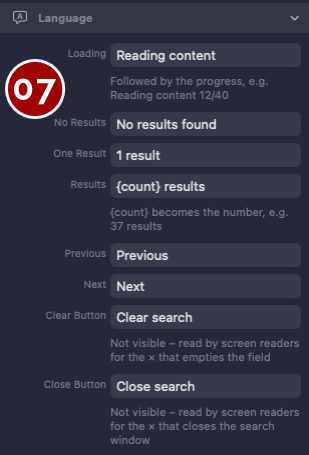
Every text a visitor sees can be translated: Loading (followed by the progress, for example Reading content 12/40), No Results, One Result and Results, where {count} becomes the number, plus Previous and Next for longer result lists.
Clear Button and Close Button are not visible – screen readers read them out for the × that empties the field and the × that closes the search window.
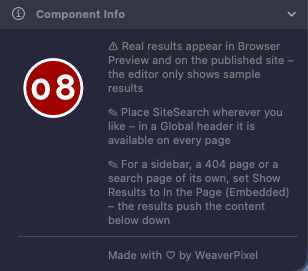
SiteSearch reads your pages in the visitor's browser – the Elements editor doesn't run JavaScript, so the canvas shows sample results instead (turn them on with Show Results In Edit). Real results appear in Browser Preview and on the published site.
Place SiteSearch wherever you like – in the header of a Global, it is available on every page. For a sidebar, a 404 page or a search page of its own, set Show Results to In the Page (Embedded) – the results then push the content below down instead of covering it. And every setting carries a description the Elements AI Assistant can read, so AI tools set up SiteSearch correctly instead of guessing.

Instant Site-Wide Search for Rapidweaver Elements